OCI Wazuh Deployment

Introduction
The following post aims to assist in the deployment of Wazuh as a centralized Security Information and Event Magament (SIEM) for Oracle Cloud Infrastructure (OCI) via a private Oracle Kubernetes Engine (OKE) cluster.
Through this blog, we will have accomplished the following tasks:
- Created a private OKE Cluster
- Configured VCN, Subnets, and Security Lists
- Prepared OCI Block Storage
- Updated Wazuh Kubernetes manifest for OCI
- Deployed and Validated Wazuh
What is Wauzh?
As stated before, Wazuh is a SIEM solution, and is comprised of four main components:
- Wazuh Indexer stores data and alerts which the Wazuh Server creates.
- Wazuh Server serves as the analytics engine which detect threats or anomalies that are collected from endpoints.
- Wazuh Dashboard visualizes alert and data from the Wazuh Server and Indexer, and highlights where agents are deployed.
- Wazuh Agent(s) deploys on endpoints to forward collected data to the Wazuh Server.
Further, all four components must be running together, otherwise Wazuh will not function correctly.
For further visualization on how these four components work together, refer to the following diagram from Wazuh.
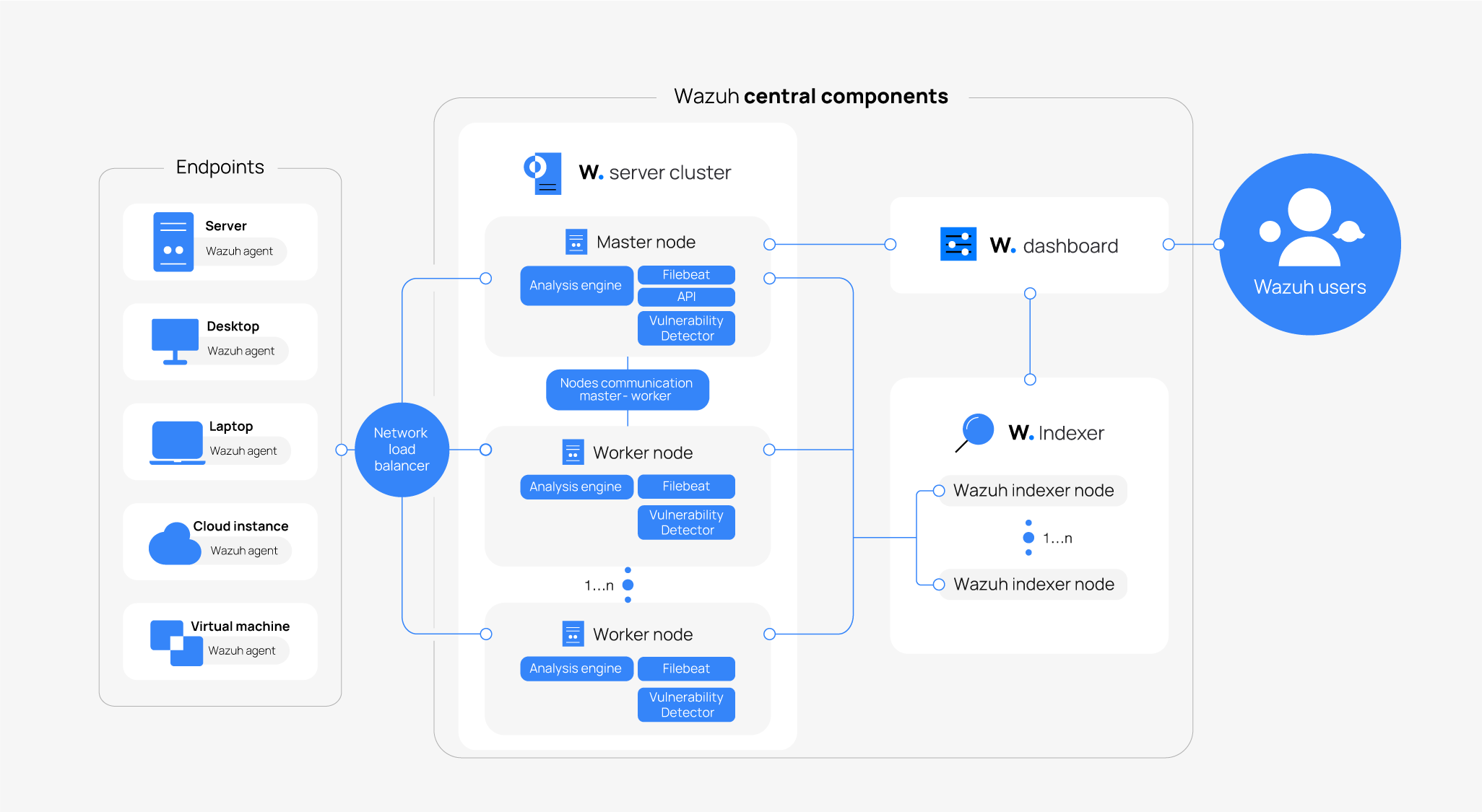
In essence, the agents forwards data from endpoints to the server which generates alerts for the indexer to store, and all of this information can be viewed from the dashboard.
Deployment
Wazuh has multiple deployment models which can be found on its installation page and alternative installations page.
For this blog, we will focus on the Deployment on Kubernetes section.
Deploy with OKE
Configuring OKE Cluster
OKE allows for two creation methods for clusters which are Quick Create or Custom Create. For this blog, we will be using Quick Create as it provisions the Virtual Cloud Network (VCN), Internet Gateway (IG), NAT Gateway (NAT), Service Gateway (SGW), Cluster, and Node Pool for us.
When creating the OKE cluster through Quick Creation, we will expect similar values for the following:
| Component | New value |
|---|---|
| Cluster | AB-Quick-Cluster |
| Cluster type | Basic |
| Kubernetes | v1.36 |
| Network type | OCI VCN-native |
| Kubernetes API Endpoint | Private |
| Node Type | Managed |
| Kuberenetes Worker Nodes | Private |
| VCN | Quick Create-generated VCN |
| VCN CIDR | 10.0.0.0/16 |
| Private API subnet | 10.0.0.0/28 |
| Private API endpoint | 10.0.0.11:6443 |
| Worker-node subnet | 10.0.10.0/24 |
| Service LB subnet | 10.0.20.0/24 |
| Kubernetes Service CIDR | 10.96.0.0/16 |
| Network Security Groups | None |
| Security Lists | Three Quick Create-generated lists |
| Node Count | 3 |
| Node Shape | VM.Standard.E5.Flex |
| Number of OCPUs | 2 |
| Memory (GB) | 8 |
| Node Image | Oracle Linux 8 |
Do note that our networking configuration may differ, so do take note of your given values. Additionally, you may add another subnet that allows for public addressing, and a separate security list for access.
For this blog, the following subnet and security list has been created in the OKE VCN for Wazuh Access via a Compute Instance through a local forwarding SSH tunnel. This instance will be our jumpbox.
| Component | New Value |
|---|---|
| Compute Subnet | 10.0.30.0/24 |
| Security List | OKE-Wazuh-Compute |
| Security List Ingress | SSH from 0.0.0.0/0 |
| Security List Egress | All to 0.0.0.0/0 |
These are just example values, so please ensure the values match your environment.
Configuring Wazuh for the Cluster
There are multiple methods on accessing the private OKE cluster to configure Wazuh which includes OCI Bastion Service, OCI Shell, or via a Compute Instance. We will be configuring Wazuh via a Compute Instance is on the same VCN as the OKE cluster and can access its nodes.
For now, I have created a simple Oracle Linux 9 Instance that is on the 10.0.30.0/24 subnet to serve as our jumpbox. Once, the instance is the instance is running SSH into it.
ssh -i <ssh-key> opc@<public address of the instance>
Afterwards, install the OCI CLI.
Next, we will be configuring the kubeconfig for our private endpoint. You may need to configure the OCI-CLI config file, and the guide can be found here.
mkdir -p "$HOME/.kube"

oci ce cluster create-kubeconfig \
  --cluster-id <YOUR-OKE-CLUSTER_OCID> \
  --file "$HOME/.kube/config" \
  --region us-ashburn-1 \
  --token-version 2.0.0 \
  --kube-endpoint PRIVATE_ENDPOINT
Additionally, we will need to install Kubectl onto our instance which can be found at the oracle cloud native environment guide and the install kubectl guide.
Then, we can clone the Wazuh-Kubernetes repository onto the jumpbox. You will need to install git sudo dnf install git.
git clone https://github.com/wazuh/wazuh-kubernetes.git \
  -b v4.14.6 --depth=1

cd wazuh-kubernetes
Next, generate the self-signed certificates for Wazuh.
./wazuh/certs/indexer_cluster/generate_certs.sh
./wazuh/certs/dashboard_http/generate_certs.sh
Once the certificates been generated, the values within the Kubernetes manifest must be updated to leverage OCI internal load balancers
Updating the docker images in the deployment files
The following files located in the wazuh-kubernetes repo need to have the image value updated.
wazuh/indexer_stack/wazuh-dashboard/dashboard-deploy.yaml
wazuh/indexer_stack/wazuh-indexer/cluster/indexer-sts.yaml
wazuh/wazuh_managers/wazuh-master-sts.yaml
wazuh/wazuh_managers/wazuh-worker-sts.yaml
Within each yaml the image value will be formated as the following wazuh/<service>, please update it to docker.io/wazuh/<service>. This is done to avoid CRI-O name errors.
For example, in wazuh/indexer_stack/wazuh-dashboard/dashboard-deploy.yaml
The image value is wazuh/wazuh-dashboard:4.14.6, so simply update the value to be docker.io/wazuh/wazuh-dsashboard:4.14.6. And do this to each of the previously mentioned files.
Updating PVCs to use OCI Block Volume
Update the following file
envs/local-env/storage-class.yaml
And for provisioner, remove microk8s.io in favor for provisioner: blockvolume.csi.oraclecloud.com #### Updating Service Manifests in Wazuh to use Private OCI Load Balancers.
The default manifest values are not tailored for OCI, so we must update them. And the files for which need to be updated are the following
wazuh/indexer_stack/wazuh-dashboard/dashboard-svc.yaml
wazuh/indexer_stack/wazuh-indexer/cluster/indexer-api-svc.yaml
wazuh/wazuh_managers/wazuh-master-svc.yaml
wazuh/wazuh_managers/wazuh-workers-svc.yaml
For dashboard-svc.yaml, we will commend out non-OCI statements and add service.beta.kubernetes.io/oci-load-balancer-internal: "true" within the annotations section.
The yaml file will appear similar to the following:
# Copyright (C) 2019, Wazuh Inc.
#
# This program is a free software; you can redistribute it
# and/or modify it under the terms of the GNU General Public
# License (version 2) as published by the FSF - Free Software
# Foundation.

# Dashboard service

apiVersion: v1
kind: Service
metadata:
  name: dashboard
  namespace: wazuh
  labels:
    app: wazuh-dashboard
  annotations:
    service.beta.kubernetes.io/oci-load-balancer-internal: "true"
spec:
  type: LoadBalancer
  selector:
    app: wazuh-dashboard
  ports:
    - name: dashboard
      port: 443
      targetPort: 5601
For wazuh-master-svc.yaml and wazuh-workers-svc.yaml, the annotations section to be the same as the example above.
Lastly, indexer-api-svc.yaml will have the type variable updated to type: ClusterIP as shown in the following example.
# Copyright (C) 2019, Wazuh Inc.
#
# This program is a free software; you can redistribute it
# and/or modify it under the terms of the GNU General Public
# License (version 2) as published by the FSF - Free Software
# Foundation.

# Indexer service: API

apiVersion: v1
kind: Service
metadata:
  name: indexer
  namespace: wazuh
  labels:
    app: wazuh-indexer
spec:
  type: ClusterIP
  selector:
    app: wazuh-indexer
  ports:
    - name: indexer-rest
      port: 9200
      targetPort: 9200
Validate and Deploy Wazuh
Render before applying to validate the manifest.
kubectl kustomize envs/local-env/ > /tmp/wazuh-rendered.yamlThen deploy.
kubectl apply -k envs/local-env/To check pods status, use:
kubectl get pods -n wazuh -w
Once the pods are in the running state use the following to confrim connectivty between Wazuh-Dasboard to Wazuh-Indexer, and Waazuh-Dashboard to Wazuh-Manager. A 401 Unauthorized Error is expected, and highlight that authentication is enforced.
kubectl exec -n wazuh deployment/wazuh-dashboard -- \
  sh -c 'curl -skI https://indexer:9200/'

kubectl exec -n wazuh deployment/wazuh-dashboard -- \
  sh -c 'curl -skI https://wazuh:55000/'
To get the private Dashboard load-balancer address, and it will be the external IP needed:
kubectl get svc dashboard -n wazuhSSH into the jumpbox, with the following parameters to establish a forward local port on 8443 to connect to the private Dashboard load balancer.
ssh -i <ssh-key> -N -T -o ExitOnForwardFailure=yes \
  -L 127.0.0.1:8443:<dashboard-private-ip>:443 \
  opc@<jumpbox-public-ip>
To get the password of Wazuh, use the following within the jumpbox:
kubectl get secret indexer-cred -n wazuh \
  -o jsonpath='{.data.username}' | base64 --decode; echo

kubectl get secret indexer-cred -n wazuh \
  -o jsonpath='{.data.password}' | base64 --decode; echo
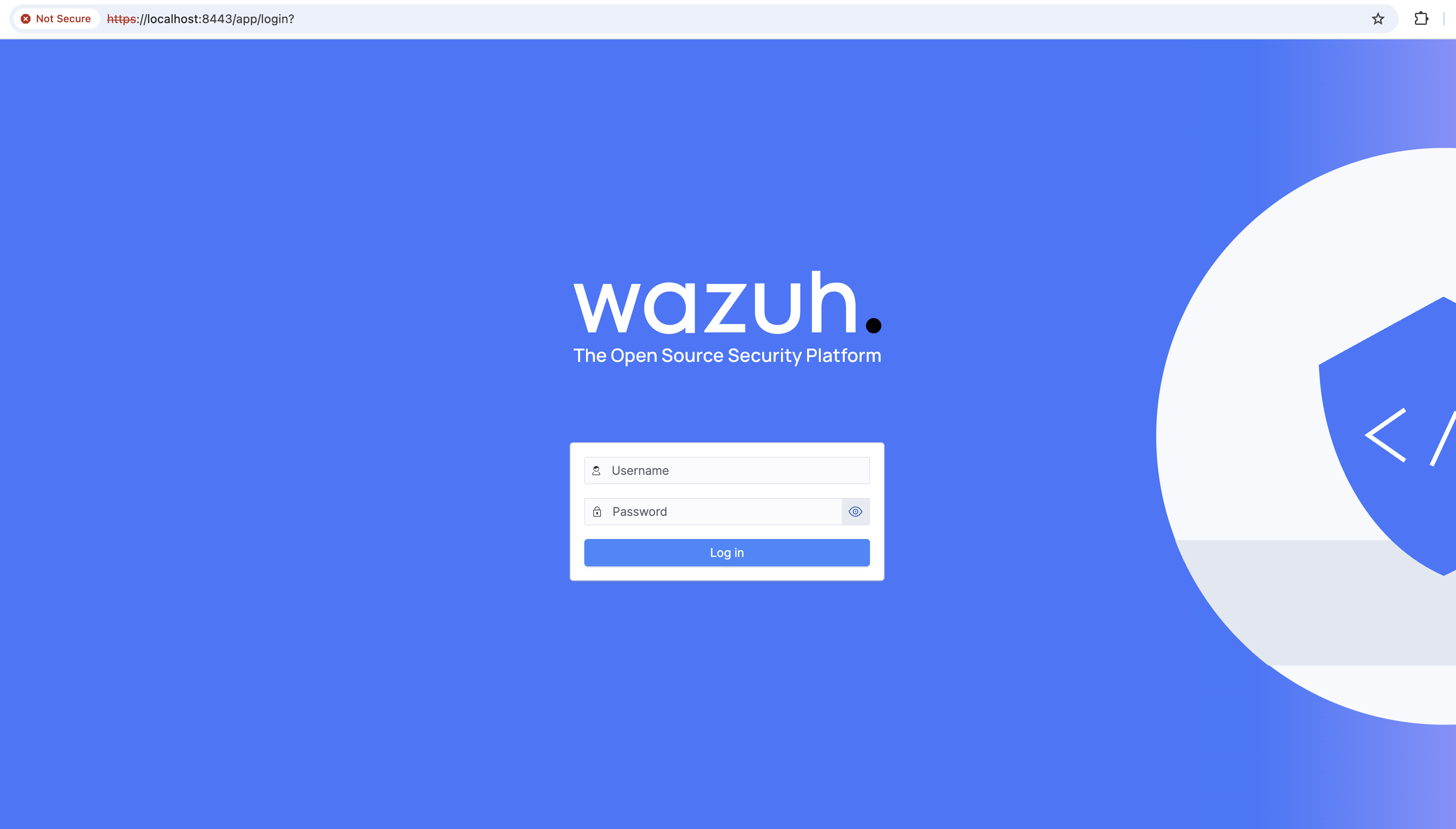
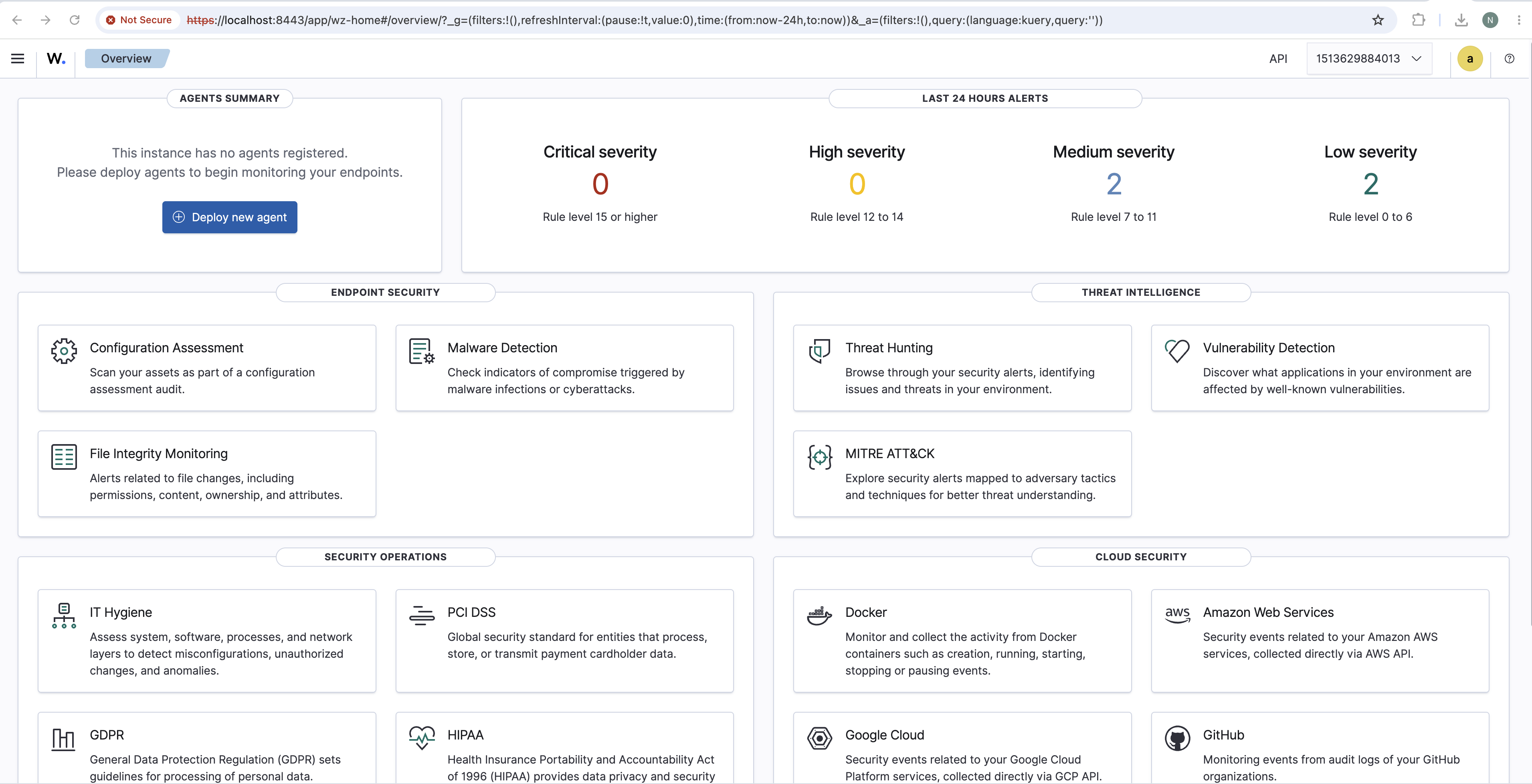
And now on your workstation’s browser, open https://localhost:8443 Since the certificate is self-signed, there will be a warning. However, proceeding pass the warning will open the Wazuh Dashboard.
Note: The Wazuh Dashboard may take a moment to be fully ready.
Conclusion
Wazuh is now fully runnign on OCI OKE via private load balancers, and can be used as a SIEM for the tenancy.